Trojan.Win32.CP4000 Removal Guide
$PARASITEID = '100083'; ?>
Do you know what Trojan.Win32.CP4000 is?
DESCRIPTION
Trojan.Win32.CP4000 is a Trojan that appears on error messages distributed by Trojan makers to push rogue anti-spyware programs. Trojan.Win32.CP4000 error messages state that you’re system is at risk and that the solution is to download the recommended anti-spyware program. The only problem is that the recommended program is a rogue anti-spyware program!
Among other fake error messages are: Trojan.Win32.Obfuscated, Trojan Win32/Qoologic and Trojan.Win32.Patched.
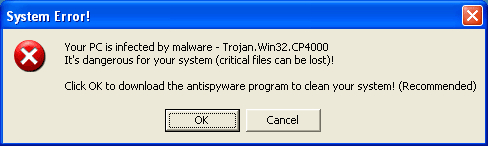
Is there a “System Error” message constantly popping up on your computer? A computer infected with Trojan.Win32.CP4000 has a “System Error” message box as shown below:
System Error!
Your PC is infected by malware – Trojan.Win32.CP4000 It’s dangerous for your system (critical files can be lost)!
Click OK to Download the antispyware program to clean your system! (Recommended)
If you’re getting an error message that shows Trojan.Win32.CP4000 within the message, then you’re infected with a Trojan that will continue to pop up Trojan.Win32.CP4000 error messages until you’re bullied into clicking on the OK button.
The whole goal of Trojan.Win32.CP4000 error message is to entice you into purchasing the false anti-spyware program. Do not under any circumstances purchase this fake anti-spyware program.
In non-techie terms: Distributors of trojans conduct illicit installation methods to extort money from you. Do not under any circumstances download or purchase products from Trojan.Win32.CP4000 error message. To make your life easier use a free anti-spyware program like SmitFraudFix. No hassle and if it doesn’t work you didn’t lose any money! Post your experience with Trojan.Win32.CP4000 or SmitFraudFix.
$PARASITENAME = 'Trojan.Win32.CP4000'; @include('./template-includes/automatic-removal.php'); ?>
$PARASITENAME = 'Trojan.Win32.CP4000'; @include('./parasite_feed/urigen.php'); ?>
Trojan.Win32.CP4000 Removal Guide Automatic Removal Instructions
Trojan.Win32.CP4000 Manual Removal Instructions
This manual removal method is for techie computer users. Trojan.Win32.CP4000 manual removal may be difficult and time consuming to remove. There’s no guarantee that Trojan.Win32.CP4000 will be removed completely. So read the Trojan.Win32.CP4000 removal steps carefully and good luck.
Before you start: Close all programs and Internet browsers. Also back up your computer in case you make a mistake and your computer stops working.
- Uninstall Trojan.Win32.CP4000 Program
Click on Start > Settings > Control Panel > Double-click on Add/Remove Programs. Search for and uninstall Trojan.Win32.CP4000 if found. - To stop Trojan.Win32.CP4000 processes (view process removal steps)
Go to Start > Run > type taskmgr. The click the Processes tab and you’ll see a list of running processes.
Search and stop these Trojan.Win32.CP4000 processes:
There are no processes.
For each unwanted process, right-click on it and then select “End task”. - To Unregister Trojan.Win32.CP4000 DLLs (view DLL removal steps)
Search and unregister these Trojan.Win32.CP4000 DLLs:
There are no dll's.
To locate the Trojan.Win32.CP4000 DLL path, go to Start > Search > All Files or Folders. Type Trojan.Win32.CP4000 and in the Look in: select either My Computer or Local Hard Drives. Click the Search button.
Once you have the Trojan.Win32.CP4000 DLL path, go to Start and then click on Run. In the Run command box, type cmd, and then click on OK.
To locate the exact DLL path, type cd in order to change the current directory. To display the contents of the directory, use the dir command. To remove the DLL file type regsvr32 /u FILENAME.dll (FILENAME is the name of the file that you want to unregister). - To unregister Trojan.Win32.CP4000 registry keys (view registry keys removal steps)
Go to Start > Run > type regedit > press OK.
Edit the value (on the right pane) by right-clicking on it and selecting the Modify option. Select the Delete option.
Search and delete these Trojan.Win32.CP4000 registry keys:
There are no registry keys. - If your homepage has been changed, go to Start > Control Panel > Internet Options > click on the General > click Use Default under Home Page. Add the your desired default homepage, then click Apply > click OK. Open a new web browser to check that you have your desired default homepage.
- Remove Trojan.Win32.CP4000 Directories.
To find Trojan.Win32.CP4000 directories, go to Start > My Computer > Local Disk (C:) > Program Files > Show the contents of this folder.
Search and delete the following Trojan.Win32.CP4000 directories:
There are no directories.
Right-click on the Trojan.Win32.CP4000 folder and select Delete.A message will appear saying ‘Are you sure you want to remove the folder Trojan.Win32.CP4000 and move all its contents to the Recycle Bin?’, click Yes.
Another message will appear saying ‘Renaming, moving or deleting Trojan.Win32.CP4000 could make some programs not work. Are you sure you want to do this?’, click Yes. - To remove Trojan.Win32.CP4000 icons on your Desktop, drag and drop them to the Recycle Bin.
You’ve completed the Trojan.Win32.CP4000 manual removal instructions!
I hope this article has helped you solve your Trojan.Win32.CP4000 problems. If you want to contribute to this article, post your comment below.
Read Other Random Posts
Did You Find this Article Helpful?
Or get latest articles to your via email:


