Ahomepcsafety or Ahomepcsafety.com Removal Guide
$PARASITEID = '100085'; ?>
Do you know what Ahomepcsafety is?
DESCRIPTION
Ahomepcsafety.com is a trojan clone of Zlob.Trojan or the Trojan.Zlob designed to trick users into purchasing a full version of a false removal program like Files Secure and VirusProtect. Ahomepcsafety.com will attempt to hijack your internet browser and redirect it’s homepage into Ahomepcsafety.com. Browser Hijacking is just another deceptive method to push malware onto your computer.
Do you ever get this error message pop up on your PC?
Warning!
W32.Myzor.FK@yf is a virus that infects files with .exe extensions. It attempts to steal passwords and private information from the infected computer.
If the image below is like the message that pops up on your computer, then your receiving the message from the browser hijacker Ahomepcsafety.com.
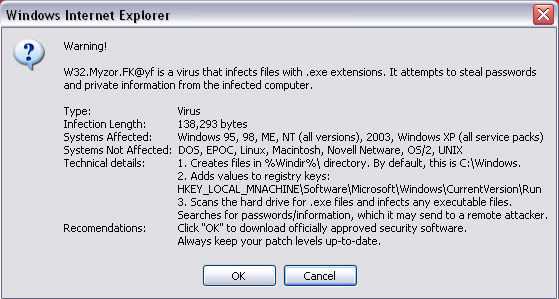
When a Trojan has control of your Internet browser you expose yourself to attacks, identity theft or other online threats. If your Internet browser’s homepage is set to Ahomepcsafety.com and you cannot change it then you may be infected with a Trojan.
Ahomepcsafety.com may display warning messages that start with titles like “Critical System Error”, “Security Warning: SpyBot.mxt trojan”, “System Performance monitor warning” or “W32.Myzor.FK”. The home page of Ahomepcsafety.com will prompt popups such as the image above prompting you to install and purchase a rogue anti-spyware program.
If you open up your browser or start fresh with a new page and your web browser automatically brings up the homepage for Ahomepcsafety.com, you must take certain precautions and steps listed below to resolve this matter.
Non-Techie terms: Spyware makers create websites like Ahomepcsafety.com to extort money from you. Ahomepcsafety.com is not a reliable website. Do not under any circumstances download or purchase any product from Ahomepcsafety or Ahomepcsafety.com.
$PARASITENAME = 'Ahomepcsafety.com'; @include('./template-includes/automatic-removal.php'); ?>
$PARASITENAME = 'Ahomepcsafety.com'; @include('./parasite_feed/urigen.php'); ?>
Ahomepcsafety or Ahomepcsafety.com Removal Guide Automatic Removal Instructions
Ahomepcsafety or Ahomepcsafety.com Manual Removal Instructions
This manual removal method is for techie computer users. Ahomepcsafety or Ahomepcsafety.com manual removal may be difficult and time consuming to remove. There’s no guarantee that the infection will be removed completely. So read the removal steps carefully and good luck.
Before you start: Close all programs and Internet browsers. Also back up your computer in case you make a mistake and your computer stops working.
- Uninstall Ahomepcsafety or Ahomepcsafety.com Program
Click on Start > Settings > Control Panel > Double-click on Add/Remove Programs. Search for and uninstall the infection if found. - To stop Ahomepcsafety or Ahomepcsafety.com processes (view process removal steps)
Go to Start > Run > type taskmgr. The click the Processes tab and you’ll see a list of running processes.
Search and stop these processes:
There are no processes.
For each unwanted process, right-click on it and then select “End task”. - To Unregister Ahomepcsafety or Ahomepcsafety.com DLLs (view DLL removal steps)
Search and unregister these DLLs:
There are no dll's.
To locate the DLL path, go to Start > Search > All Files or Folders. Type Ahomepcsafety or Ahomepcsafety.com and in the Look in: select either My Computer or Local Hard Drives. Click the Search button.
Once you have the DLL path, go to Start and then click on Run. In the Run command box, type cmd, and then click on OK.
To locate the exact DLL path, type cd in order to change the current directory. To display the contents of the directory, use the dir command. To remove the DLL file type regsvr32 /u FILENAME.dll (FILENAME is the name of the file that you want to unregister). - To unregister Ahomepcsafety or Ahomepcsafety.com registry keys (view registry keys removal steps)
Go to Start > Run > type regedit > press OK.
Edit the value (on the right pane) by right-clicking on it and selecting the Modify option. Select the Delete option.
Search and delete these registry keys:
There are no registry keys. - If your homepage has been changed, go to Start > Control Panel > Internet Options > click on the General > click Use Default under Home Page. Add the your desired default homepage, then click Apply > click OK. Open a new web browser to check that you have your desired default homepage.
- Remove Ahomepcsafety or Ahomepcsafety.com Directories.
To find infection directories, go to Start > My Computer > Local Disk (C:) > Program Files > Show the contents of this folder.
Search and delete the following directories:
There are no directories.
Right-click on the named folder and select Delete.A message will appear saying ‘Are you sure you want to remove the selected folder and move all its contents to the Recycle Bin?’, click Yes.
Another message will appear saying ‘Renaming, moving or deleting a folder could make some programs not work. Are you sure you want to do this?’, click Yes. - To remove Ahomepcsafety or Ahomepcsafety.com icons on your Desktop, drag and drop them to the Recycle Bin.
You’ve completed the manual removal instructions!
I hope this article has helped you solve your problems. If you want to contribute to this article, post your comment below.
Read Other Random Posts
Did You Find this Article Helpful?
Or get latest articles to your via email:

I hope this article has helped to solve Ahomepcsafety problems. thanks.